
Manage Mailboxes
From your EZBizMail Control Panel, you can add and remove email addresses, change passwords, set up auto-responders, manage aliases, forwarding and more. Follow the steps below to open your Control Panel from the EZBizMail portal and begin managing your mailboxes.
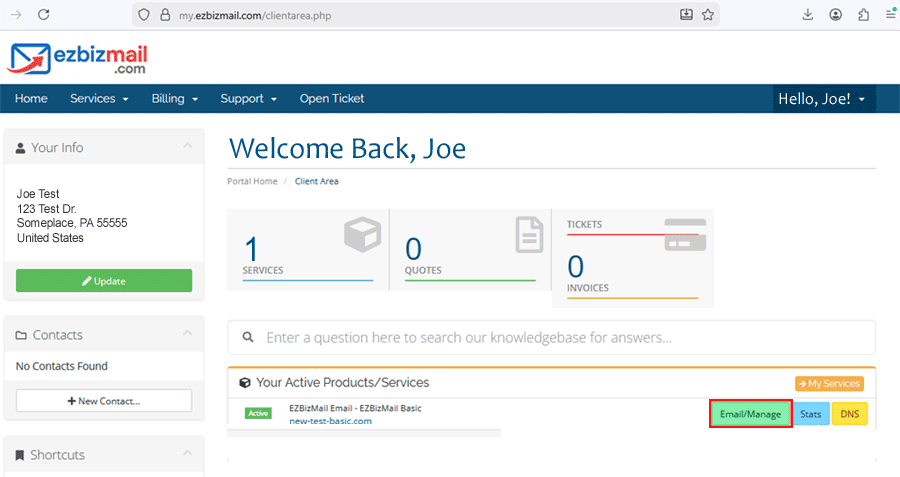
Open the Control Panel (Manage Plan)
- Go to https://my.ezbizmail.com/ and log in.
- On the Client Area home page, locate your EZBizMail service under Your Active Products/Services.
- Click the green Email/Manage button next to the service.
- You will be taken directly to the Mail area of your domain’s Control Panel.
The Mail section lists your current email accounts and provides access to mailbox settings, password changes, aliases, forwarding and spam controls.
Create a New Mailbox
- Ensure the Email Addresses tab is selected.
- Click + Create Email Address.
- Enter the email name before
@yourdomain.com. - Create and confirm a strong mailbox password.
- Review optional settings.
- Click OK / Save to finish.
You can now log in to webmail or add the mailbox to any email app.
Change a Mailbox Password
- Locate the mailbox in the Email Addresses list.
- Click the email address to open its settings.
- Find the Password section.
- Enter the new password and confirm it.
- Click OK / Apply to save.
Update the password in your email apps to avoid login errors.
Set an Auto-Responder
- Click the mailbox you want to configure.
- Open the Auto-Reply or Auto-Responder section.
- Enable auto-reply.
- Type your message (subject + body).
- Optionally set start/end dates.
- Save your changes.
Auto-responders are perfect for vacation notices or out-of-office replies.
Email Forwarding & Aliases
- Select the mailbox you want to update.
- Open the Forwarding or Aliases section.
- Enable forwarding if needed and enter the destination address(es).
- Add aliases if you want multiple addresses to share one inbox.
- Save your changes.
Aliases let you receive mail sent to multiple addresses in a single mailbox.
Spam & Security Settings
- Open the Mail Settings tab.
- Review spam filter and virus protection options.
- Adjust the sensitivity or actions (move to spam, reject, etc.).
- Save your settings.
If unsure, leaving the default recommended settings is fine.
Remove a Mailbox
- On the Email Addresses tab, check the box next to the mailbox.
- Click Remove to permanently delete it.
Need Help?
If you have questions or need help configuring your mailboxes, open a support ticket from the EZBizMail portal and our team will assist you.